Resideo Pro App
The Resideo Pro app allows the installer to:
-
Configure the thermostat and add the customer to create a record of the device, customer and location.
-
One touch configuration with ISU Templates.
-
Friction-free hand-off to homeowner so they can complete registration of their device and connect it to WiFi.
Steps
-
After powering the thermostat, follow the on-screen directions until it asks if you want to do setup on device or using the app. Select Using the app.
-
Open the Resideo Pro App. If you do not already have the Resideo Pro app, download the app and create your account.
-
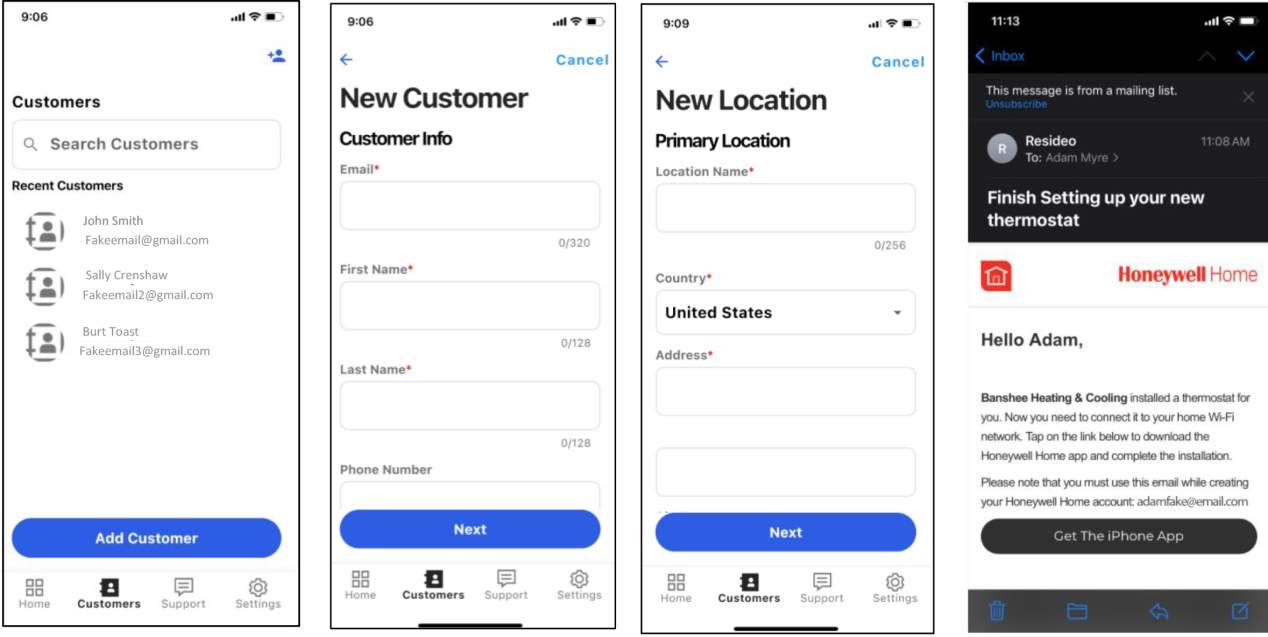
Select Customers.
If the thermostat installed is for an existing customer choose them from the list. If it is a new customer, select “Add customer”.
Once you have finished adding the customer information below, the app will send an email to the customer inviting them to download the app if they don’t already have the app or to connect the thermostat to WiFi if they already have the app and the thermostat wasn’t added to WiFi by the installer.
Using or saving Templates for Set up
-
You need to be an owner / Admin to set up Templates in the Resideo Pro app.
-
You can give admin access to your lead technicians if desired via Pro Portal.
-
Any technician added by the company admin can apply one of the saved templates to ElitePRO thermostats during setup.
Video: Create a Template in Resideo Pro App
Watch this video for step-by-step instructions on creating a template in the Resideo Pro App.
Apply a Template
To apply a Template, use the Resideo Pro app to connect to the Resideo Smart thermostat via Bluetooth when the thermostat prompts you to setup on thermostat or with the app.
-
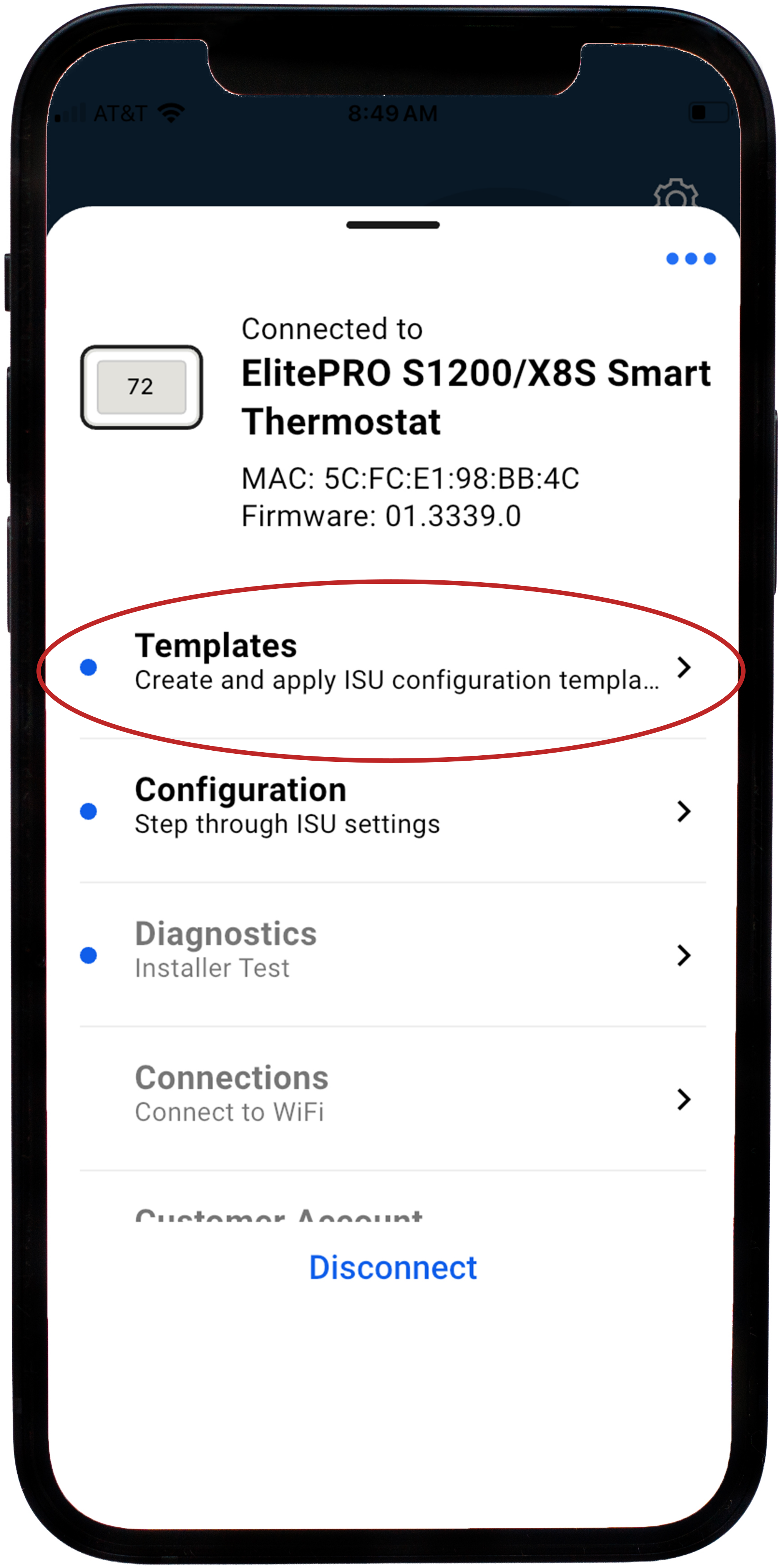
Select Templates in the dashboard.
-
Select the template you wish to apply to the thermostat.*
-
Review the summary screen if needed. Then touch Apply in the app screen.
-
Once complete, the app shows “Success, the thermostat is now configured”. Select OK.
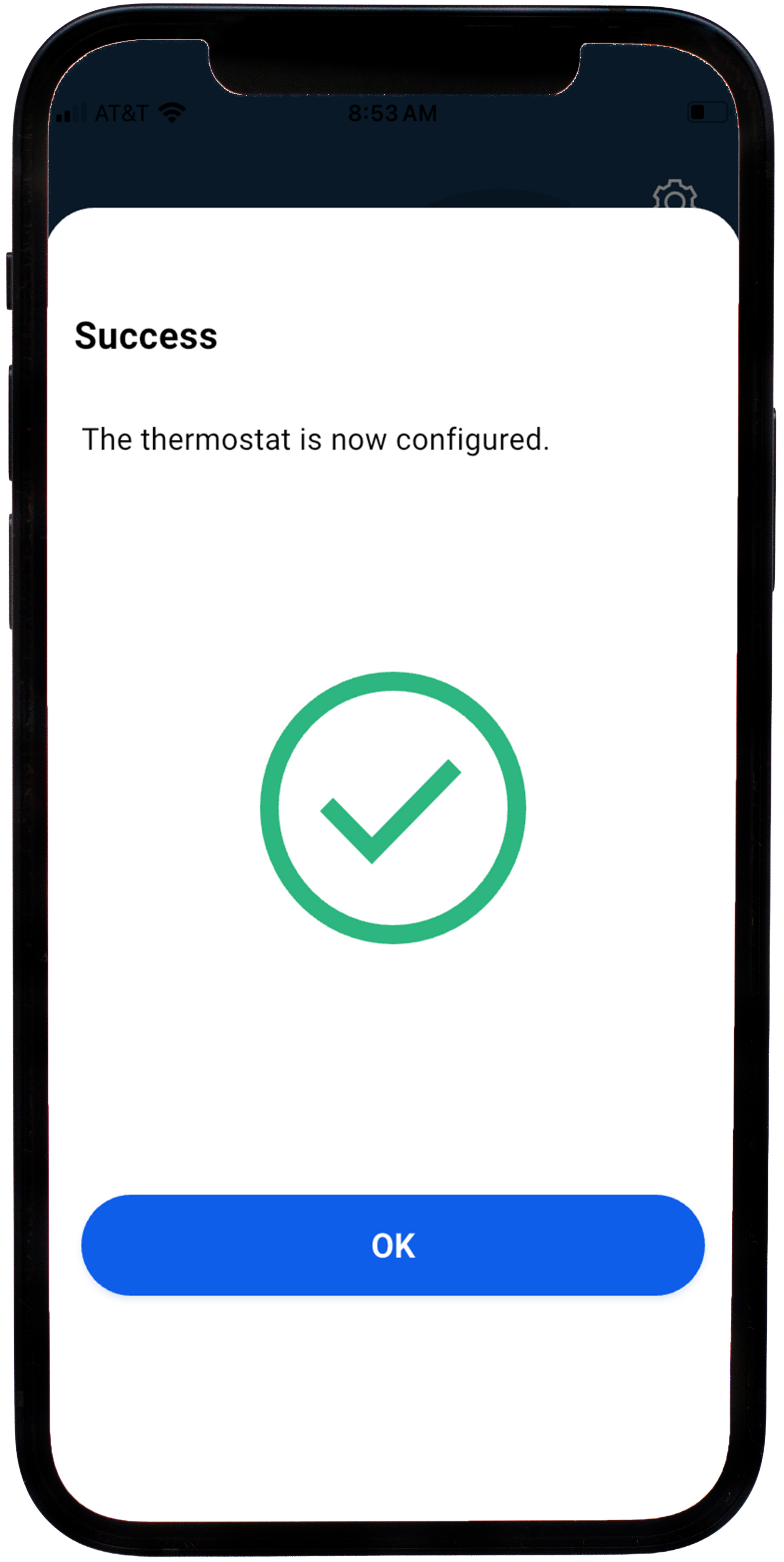
* If no templates have been saved by your company’s admin, then there will not be any templates to select here. The company’s admin will also see an option to “Add new Template” at the bottom of the Templates screen”
-
Modifications can be made to the ISU settings after applying the template if needed. Just touch Configuration on app to do so.
-
You can create up to 50 different templates.
-
If you want to review the saved Templates, you can do so by going to Tools and selecting Templates.
-
Here you can edit the name or description of a template. Or delete a template that is no longer needed.
Create New Templates
To create a Template, use the Resideo Pro app to connect to the Resideo Smart thermostat via Bluetooth when the thermostat prompts you to setup on thermostat or with the app.
-
Select Templates in the dashboard.
-
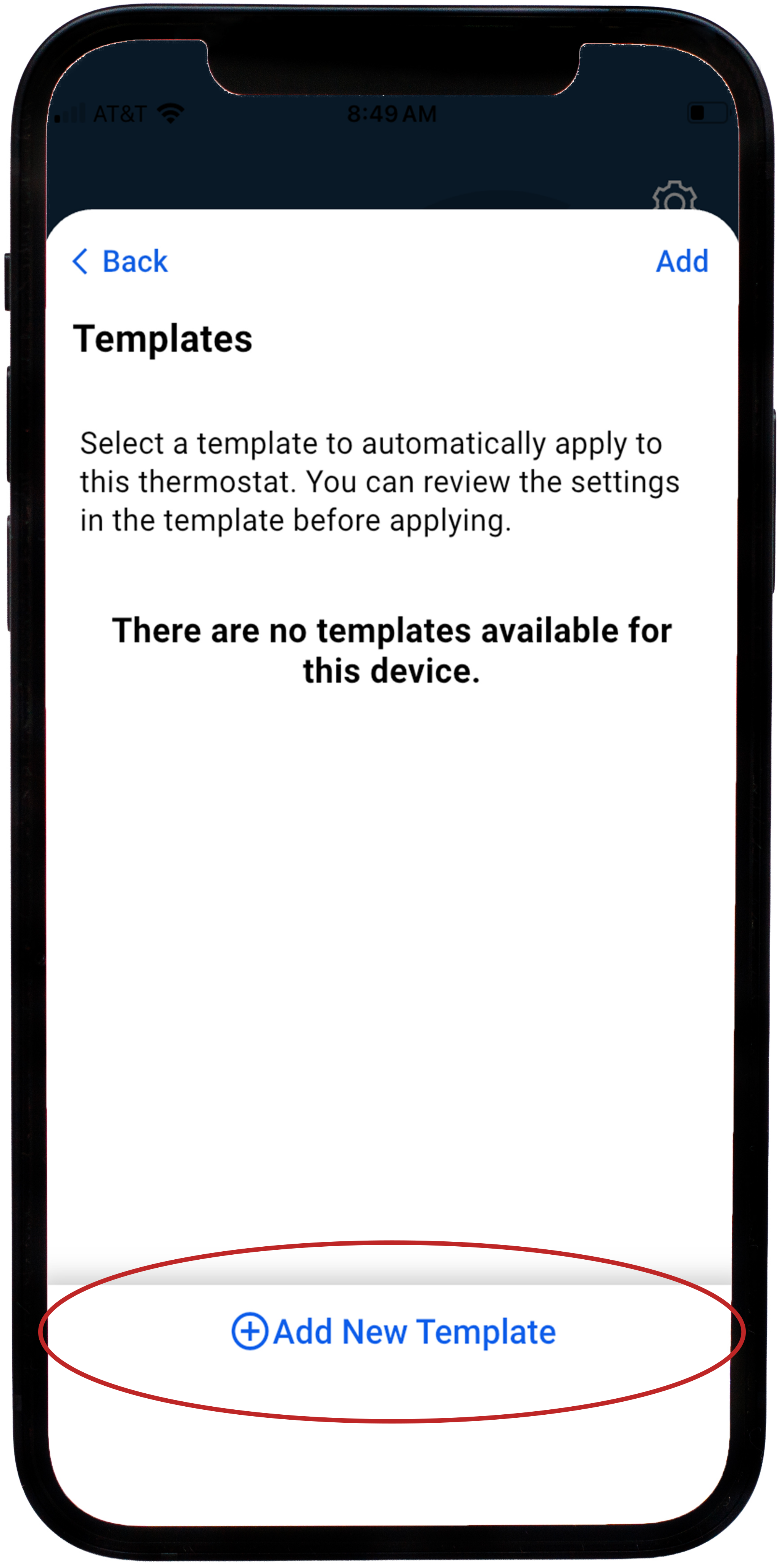
Choose Add new Template at the bottom of that screen. Or select one of the templates if there are already any saved.
If you do not have admin permission, you will not see the option to Add new Template.
-
When creating a new template, follow the prompts to choose the ISU settings.
-
Once complete, the app shows “Success, the thermostat is now configured”. Select OK.
-
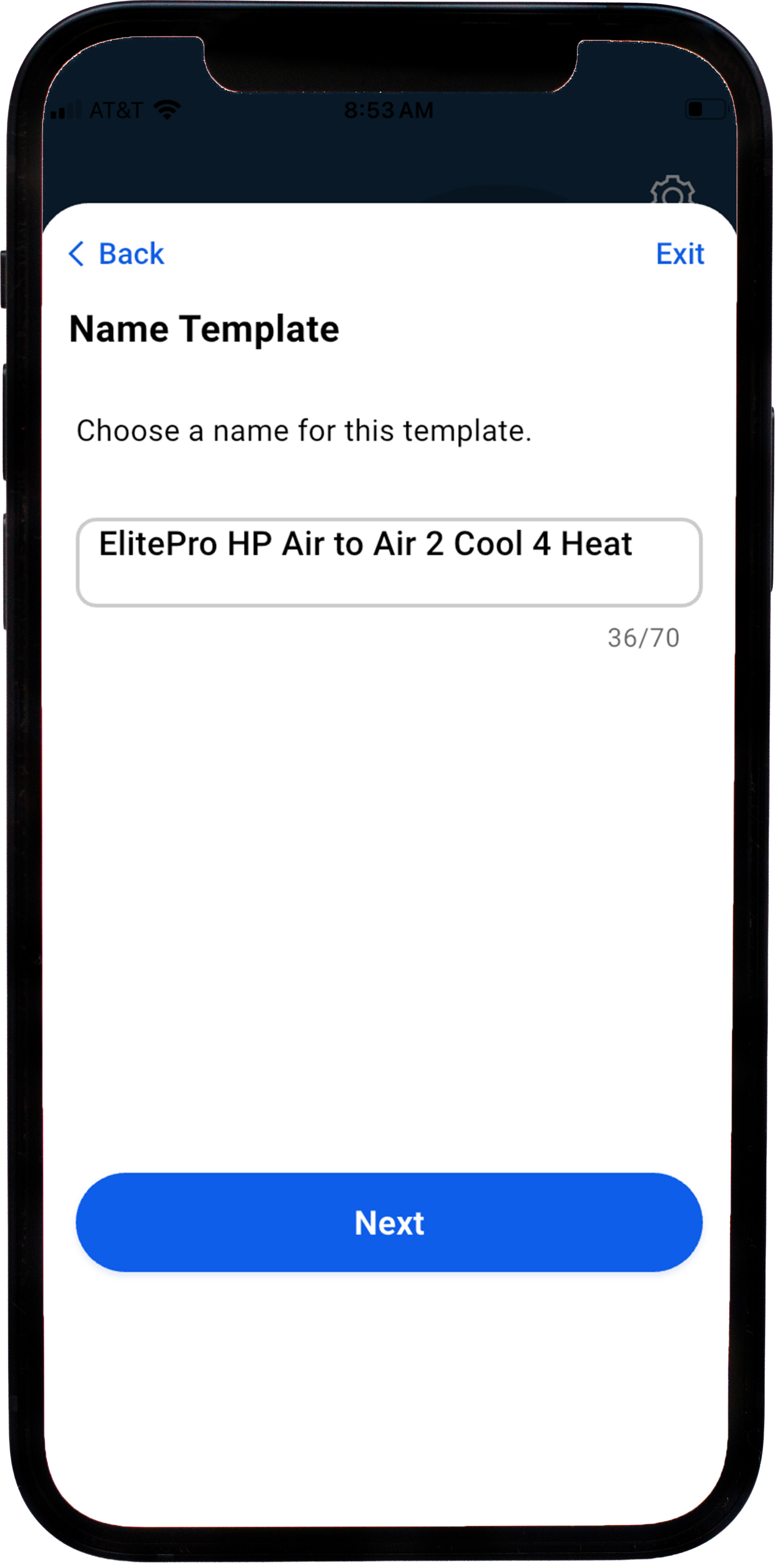
Name the template. The app defaults a name for the template, but you can modify that name as needed.
-
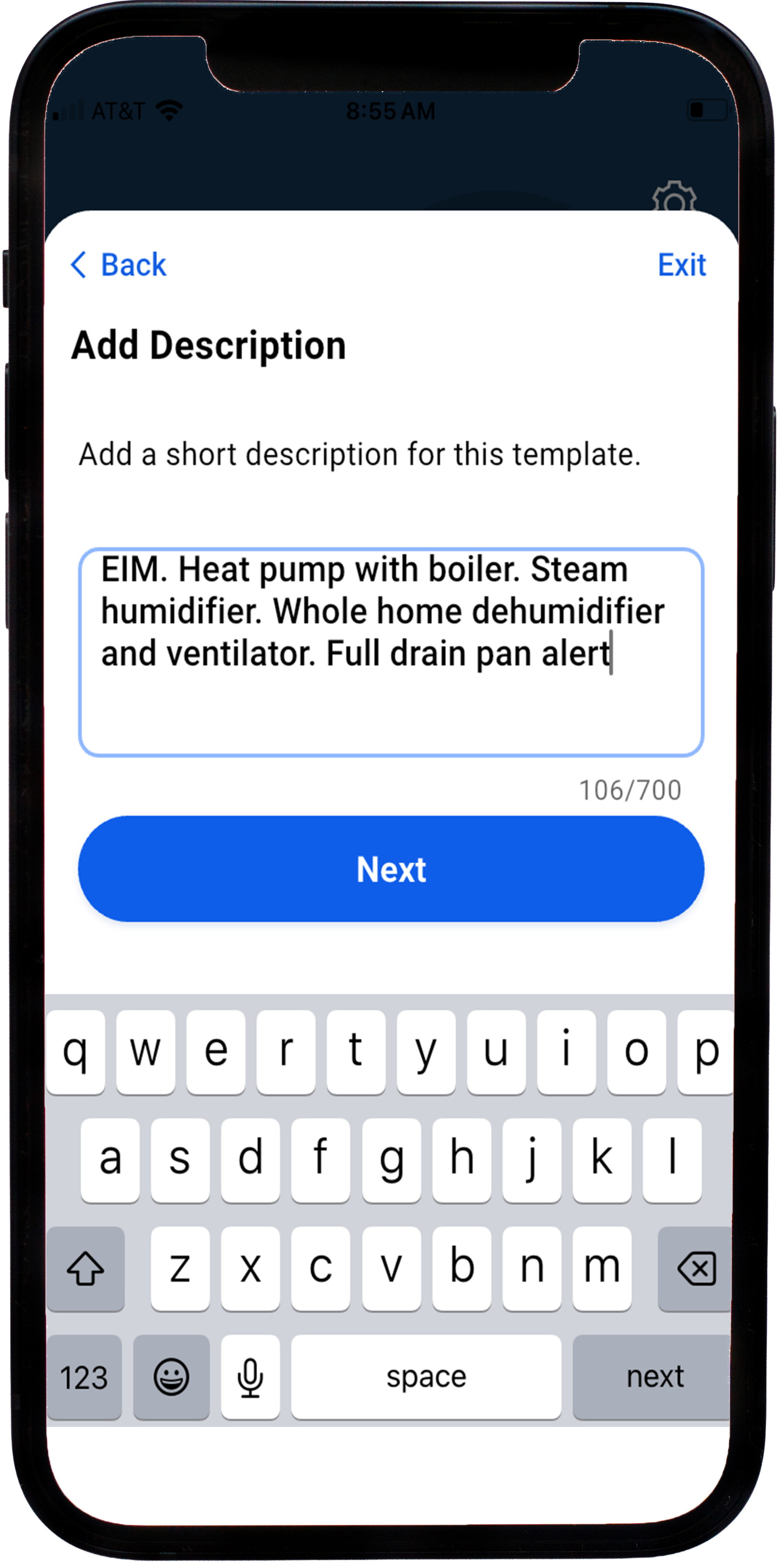
The app then asks you to add a description of the template.
-
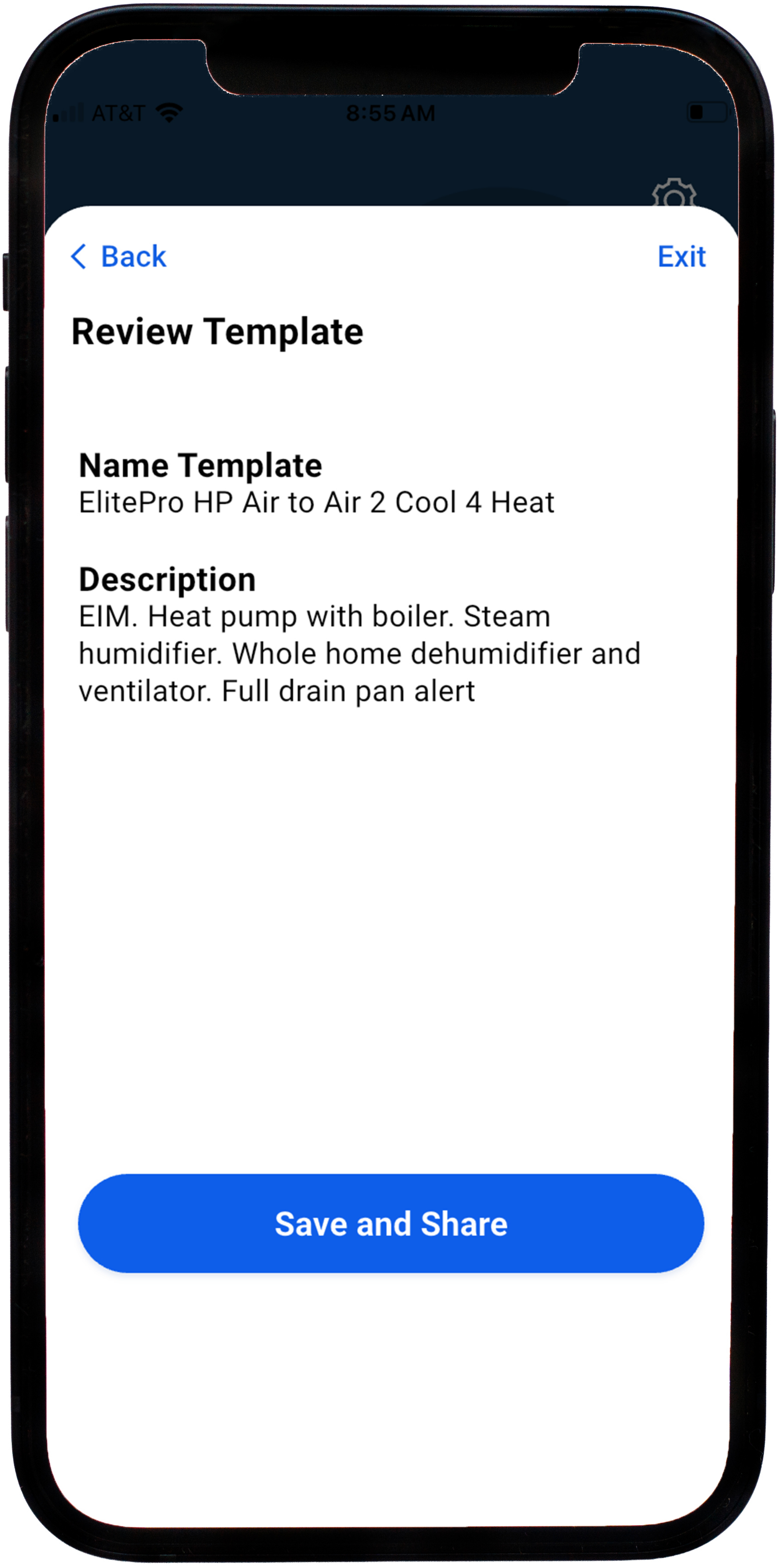
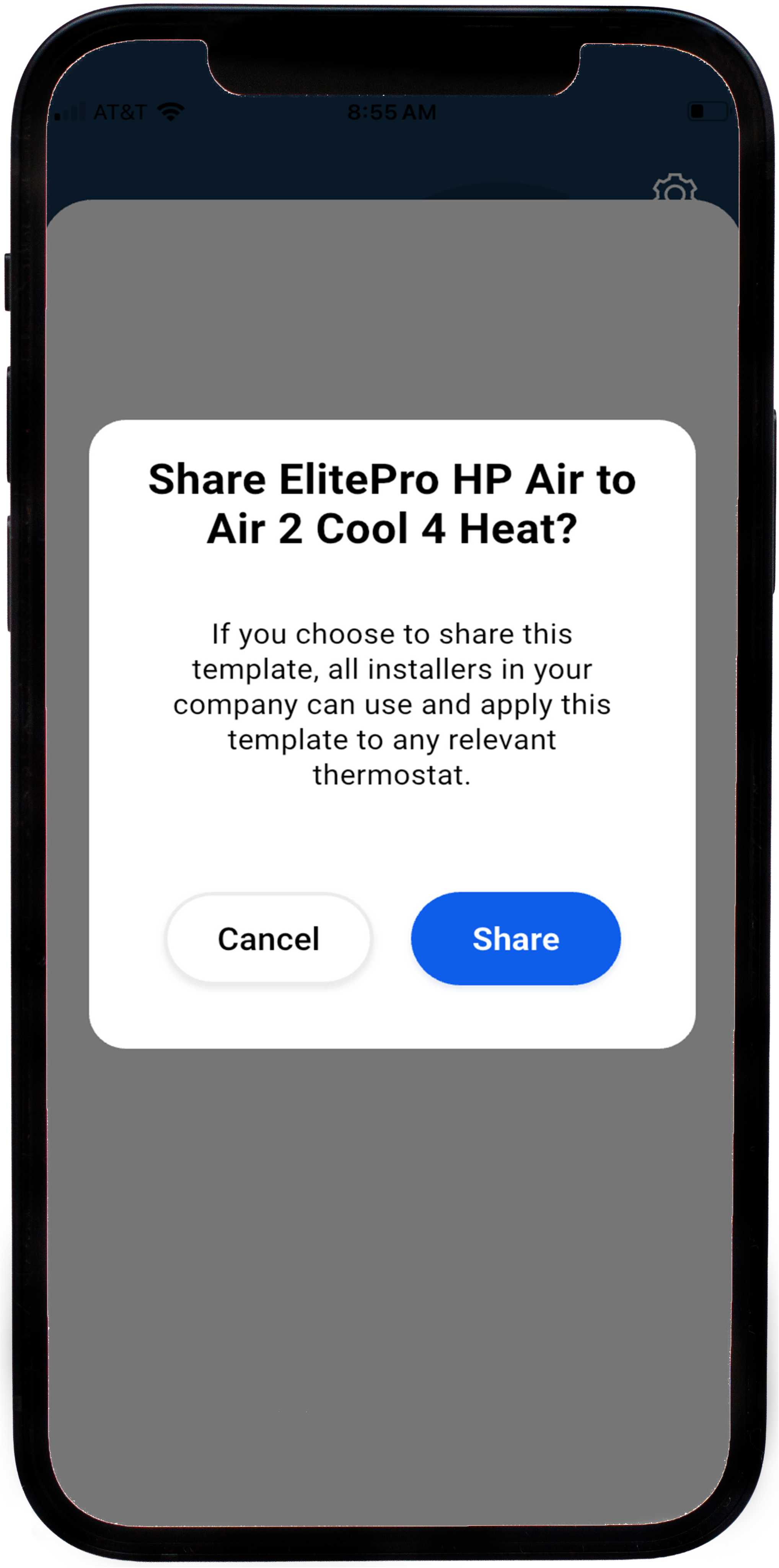
Review the Template, then select Save and Share.
-
By doing so, all of the employees in your company have access to this template to apply to their Resideo Smart thermostat installations.
Video: Connect ElitePRO Series Thermostat to Resideo Pro App
Watch this video for step-by-step instructions on connecting your ElitePRO™ Series Thermostat to the Resideo Pro App.
Video: Set Up a Thermostat for Residential New Construction in the Resideo App
You can set up a thermostat for residential new construction and then claim the device in the Resideo Pro app once the new resident moves in.
Begin by setting up a builder or partner in the Pro Portal. When you go through the Resideo Pro app to set up the device, select customer unknown. Later, once the customer moves in, you can connect the thermostat to the customer. Watch the following video to learn more.
Video: Claim a Device in the Resideo Pro App
Installers can claim customers through the Resideo Pro app one of three ways:
-
They sell new equipment to a customer of a replacement system. When doing the install and setting up the device they will claim that customer/device.
-
They are doing a service or maintenance visit of an existing customer. During the service visit they notice the customer has a connected Honeywell Home thermostat on the wall. They claim that device of the customer on this service visit.
-
When installing equipment for a new build, they claim the device itself so when the homeowner moves in they are prompted to accept a relationship with the pro who installed for them.
Watch the following video to see how to claim a device through the Resideo Pro app.